Ditch the Paper: How I Built a Digital Business Card System Using NFC


A practical guide for anyone who's ever handed out a business card and wondered if there's a better way
So here's a question — when was the last time someone handed you a paper business card and you actually did something useful with it? If you're anything like me, it ended up in a drawer, a pocket, or the bin. And yet businesses still spend thousands printing cards that go out of date the moment someone changes their phone number or job title.
I recently worked on a project to replace a company's entire paper business card setup with a digital alternative. The sales team were all on Android phones, and the solution needed to work for customers on iPhones too. What started as a simple question — "can we just tap phones like Apple does?" — turned into a really interesting rabbit hole. Here's everything I learned, and how I built and hosted the solution myself.
Wait — Can't We Just Use NameDrop?
If you have an iPhone, you've probably seen NameDrop — the feature where you hold two iPhones close together and they swap contact details. It's slick, it's instant, and it looks impressive in a meeting.
There's just one problem. NameDrop is Apple only. iPhone to iPhone, full stop. Since this team was on Android, NameDrop was off the table entirely. And even if some reps switched to iPhone tomorrow, roughly half their customers would still be on Android where NameDrop doesn't exist.
What we needed was something that works regardless of what the customer is holding.
The Technology Behind It — NFC
NFC stands for Near Field Communication. It's the same technology behind contactless payments — tap your card or phone off a reader and it just works. Every modern smartphone (iPhone 7 and up, and most Android phones from the last several years) has an NFC chip built in.
The idea is simple. Each sales rep gets a small NFC card — same size as a credit card. When a customer taps their phone against it, something useful happens immediately. No app needed on either side. One tap and you're done.
What actually happens depends on what's stored on the card, and — this is the important bit — what phone the customer is using. Android and iPhone handle NFC differently, which is the core challenge this whole project had to solve.
What About Office ID Cards?
This is where it got interesting. The company was already using ID cards for building access running at 13.56 MHz. The big question was whether an NFC business card would clash with those.
The short answer is no — and here's why.
There are two main types of access control cards:
- 125 kHz cards — older technology, common in legacy systems. Simple, no encryption.
- 13.56 MHz cards — newer, more secure, the same frequency used by NFC.
NFC business cards also run at 13.56 MHz, but they use a completely open, standard chip called NTAG213. Your access control reader has no idea what to do with an NTAG213, and an NFC-enabled phone has no idea what to do with an access control credential. The two chips just ignore each other — they can happily live in the same wallet or on the same lanyard with no interference.
Writing to the Card with NFC Tools
Before we get into hosting a web page, let's cover the free app that does all the card programming — NFC Tools by wakdev. It's available on Android for free and takes about two minutes to set up. This is what you'll use to write data onto every card.
Open the app, tap Write, then Add a record, and you'll see a list of record types. For a business card the most useful ones are:
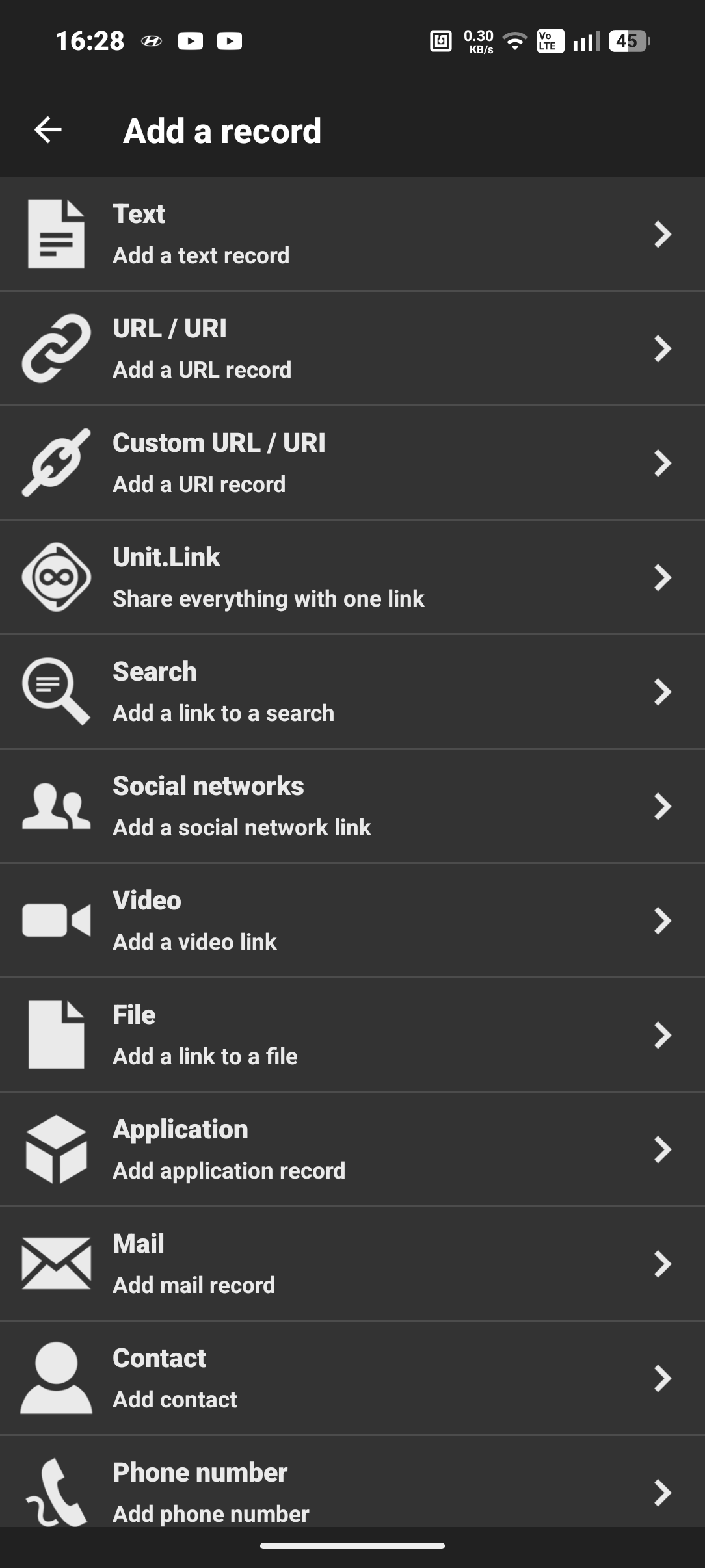
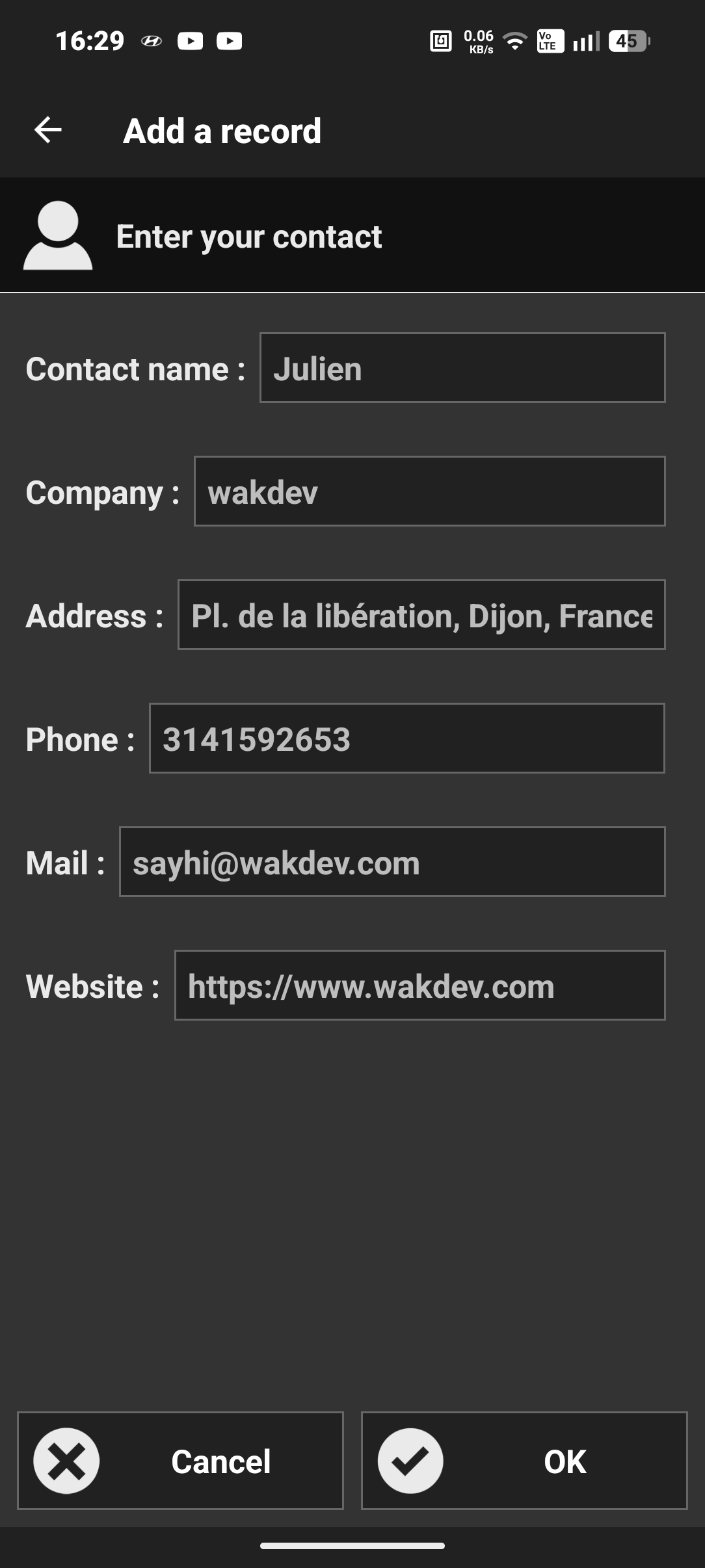
- Contact — writes a full vCard directly to the chip: name, phone, email, company, address, the lot. On Android, tapping the card shows a notification to save the contact immediately — no browser, no page, no clicks.
- URL / URI — stores a web address that opens in the phone's browser when tapped
- Phone — stores a single phone number, tapping the card opens the dialler
- Email — tapping launches a new email pre-addressed to you
- Social network — stores a link to a LinkedIn or other profile
- Text — plain text, useful for a short message or job title
The trick — write BOTH a Contact record AND a URL record
Here's the approach that makes the card work on every device:
In NFC Tools, add two records to the same card before writing:
- First, add a Contact record with all the person's details
- Then add a URL / URI record pointing to the hosted card page
Android reads the Contact record natively and immediately shows a "Save contact" notification — fast, seamless, no browser needed. iPhone ignores the Contact record entirely (iOS only responds to URL records) but picks up the URL record and opens the card page in Safari, where the customer can tap "Save to Contacts."
One card, both platforms covered, best experience on each.
To add both records in NFC Tools:
- Tap Write
- Tap Add a record → choose Contact → fill in the details → tap OK
- Tap Add a record again → choose URL / URI → enter your card page URL → tap OK
- You'll see both records listed — tap Write and hold the card to the back of your phone
- Done — takes about 10 seconds per card
What else can NFC Tools do?
Once a card is written you can also use NFC Tools to:
- Read any NFC tag and see exactly what's stored on it
- Erase a tag and start fresh
- Lock a tag so it becomes read-only (use with caution — this is permanent on most chips)
- Set a password so only authorised devices can write to it (NFC Tools Pro, about €2)
- View tag info — chip type, memory capacity, unique ID, and a scan counter showing how many times the card has been tapped
That scan counter is a surprisingly useful feature — tap the card in NFC Tools and you can see exactly how many times it's been read in the field.
Under the Hood — What's Actually on the Chip?
This is the part most guides skip, but if you're deploying these for a team it's worth understanding what you're working with.
The cards most commonly used for NFC business cards use a chip called the NTAG213, made by NXP Semiconductors. It's one of the most widely used NFC chips in the world and what you'll get in almost any blank NFC card or sticker you buy online.
Here are the key specs:
| Spec | NTAG213 |
|---|---|
| Frequency | 13.56 MHz |
| Standard | ISO/IEC 14443-A (NFCa) |
| Total memory | 180 bytes |
| User-writable memory | 144 bytes |
| Usable for NDEF data | 137 bytes |
| Write cycles | 100,000 |
| Data retention | 10 years |
| Password protection | Optional 32-bit |
| Unique ID | 7-byte UID, factory programmed |
137 bytes — is that enough for both records?
This is where it gets tight. A short URL takes around 50–60 bytes. A basic Contact record with name, phone and email takes another 60–80 bytes. A full vCard with company, address, LinkedIn and multiple fields can push 200–300 bytes — which won't fit on an NTAG213 at all.
The solution is to keep the Contact record lean — name, phone number, email, and company only — and let the hosted web page carry the rest (LinkedIn, website, full address). That way both records fit comfortably within the 137 bytes available, and the card works reliably on every device.
If you need more headroom, there are two bigger chips in the same family:
- NTAG215 — 504 bytes of user memory. Enough for a full vCard plus a URL with room to spare.
- NTAG216 — 888 bytes. The largest in the series. Useful if you want to store multiple URLs or extended data directly on the chip.
For most business card use cases, NTAG213 hits the sweet spot of cost, availability and capacity. But if your team have very long email addresses or you want to cram in more fields, NTAG215 is worth the small extra cost.
How does the chip get read without a battery?
This one always surprises people. The NTAG213 has no battery — it gets its power from the RF field generated by the reading device. When you tap your phone against the card, the phone's NFC antenna creates a small electromagnetic field. The chip harvests just enough energy from that field to power itself, read the stored data, and transmit it back — all in under 100 milliseconds. The card can sit in a drawer for 10 years and still work perfectly on the first tap.
Can someone overwrite my card?
By default, yes — any phone with NFC Tools can overwrite an unprotected card. For a business card this is generally low risk (worst case someone overwrites the URL), but if you want to lock it down you can set a write-protect password in NFC Tools Pro after encoding. Once set, anyone can read the card but only someone with the password can change what's on it.
Building the Card Page
Rather than pay a monthly subscription to a platform like Popl or Mobilo (though these are great options if you don't want to self-host), I built a simple HTML page that generates and downloads a .vcf contact file when the customer taps "Save to Contacts."
The page is what iPhone users land on when they tap the card. It's also a nicer experience for Android users who want to see the full contact details — LinkedIn, website, address — before saving.
Here's how it works:
- iPhone taps the card → picks up the URL record → Safari opens the card page
- Customer taps "Save to Contacts" → a
.vcffile downloads → iPhone prompts to add the contact - Android taps the card → picks up the Contact record → saves immediately via notification
- Android user can also open the URL for the full branded page if they want
The page itself is plain HTML with no server-side code. Just a static file you can host anywhere.
Hosting It on a Self-Hosted Ghost + Docker Setup
The cleanest solution was to spin up a dedicated Nginx container just for serving static files.
Here's the service I added to my existing docker-compose.yaml:
nginx-static:
  image: nginx:alpine
  container_name: nginx-static
  restart: always
  volumes:
    - ./static:/usr/share/nginx/html
    - ./nginx-static.conf:/etc/nginx/conf.d/default.conf
  networks:
    - proxiable
And the Nginx config (nginx-static.conf):
server {
    listen 80;

    location / {
        root /usr/share/nginx/html;
        try_files $uri $uri/ =404;
        default_type text/html;
    }
}
No ports exposed — I am using Nginx Proxy Manager to handle all inbound traffic in this example, but you can just have a static page on what ever stack you are using. The nginx-static container only listens internally on the Docker network, which is exactly what you want.
In Nginx Proxy Manager, I added a new proxy host:
- Domain:
cards.jimgogarty.com - Forward Hostname:
nginx-static - Forward Port:
80 - SSL certificate from Let's Encrypt
Added a DNS A record pointing cards.jimgogarty.com at the server IP, and within a few minutes it was live with a valid SSL cert.
The card files sit in ./static/cards/ on the host:
./static/
  └── cards/
        └── jim-gogarty.html
        └── jane-doe.html   ← adding a new person is just this
Adding a new team member is dropping an HTML file into that folder. No config changes, no container restarts needed.

My Digital Business Card.
Find below an example of the html i used to post to the Nginx vm,
What the Customer Sees
On Android:
The moment they tap the card, a notification appears at the top of the screen — "Save contact?" — with the name and number pre-filled. One tap to confirm and it's saved. Fast, clean, no browser involved.
On iPhone:
Tapping the card opens Safari automatically with the rep's card page. From there they can:
- Tap the phone number to call directly
- Tap the email to open their mail app
- Tap "Save to Contacts" to download the
.vcfand add the contact - Tap LinkedIn or the website to open those directly
- and finaly they can download the card to there phonebook on there phone
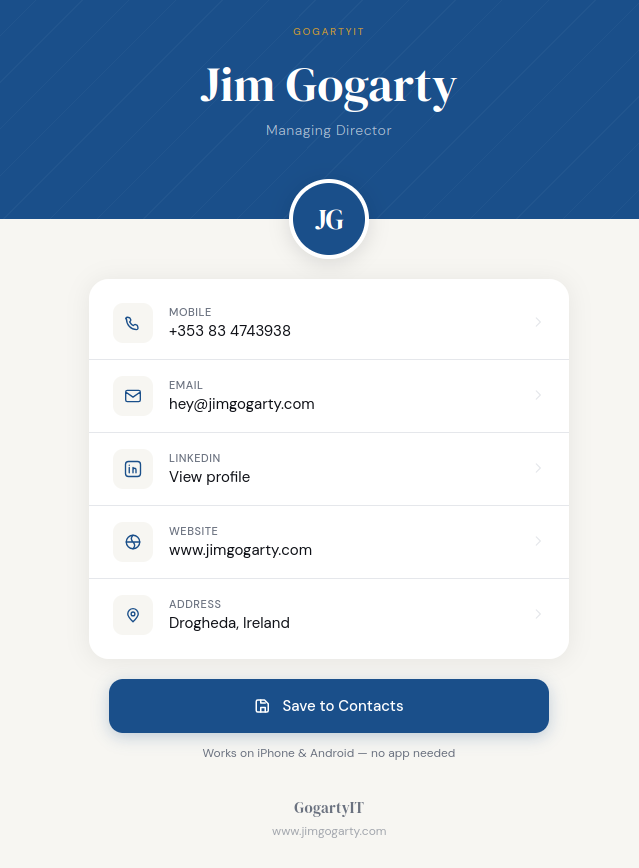
The whole experience takes about 10 seconds on either platform and leaves the customer with a saved contact rather than a piece of card that'll get lost.
The Cost Breakdown
| Item | Cost |
|---|---|
| NFC cards (blank NTAG213, pack of 50) | ~€20–30 |
| NFC Tools app | Free |
| NFC Tools Pro (optional, for password protection) | ~€2 |
| Hosting (self-hosted) | €0 extra |
| Hosting (platform like Popl/Mobilo) | ~€5–10/user/month |
If you're already self-hosting a server, the entire solution costs the price of the cards. If you'd rather skip the Docker setup, a platform subscription handles everything with a nice admin dashboard on top — well worth it for larger teams.
Quick Recap
- NFC cards work on every modern iPhone and Android — no app needed for customers
- Write both a Contact record and a URL record to the chip — Android saves the contact natively, iPhone opens the web page
- Keep the Contact record lean to fit within the NTAG213's 137-byte NDEF limit
- Host a simple HTML page that generates a
.vcfdownload for iPhone users - A dedicated Nginx container in Docker is the cleanest way to serve static files alongside Ghost
- Adding new staff cards is just dropping an HTML file into a folder
The HTML template I built for the card page is available on my GitHub — link below. Drop a comment if you have any questions or if you're working on something similar.
Have you tried NFC business cards? Or are you sticking with paper? Let me know in the comments.