From a €5 Charity Shop Find to a Fully Working Phone System (Beginner Guide)

On the 3CX page, click on your account, and there you will see an option to add an IP Phone.How I built my own PBX using 3CX and Twilio — starting with a second-hand SIP phone, zero VoIP experience, and a lot of trial and error.
The Story — How This All Started
I wasn't planning to build a phone system that afternoon.
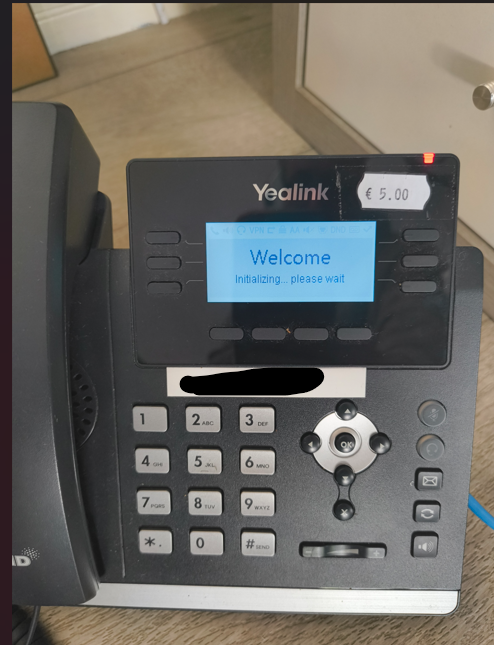
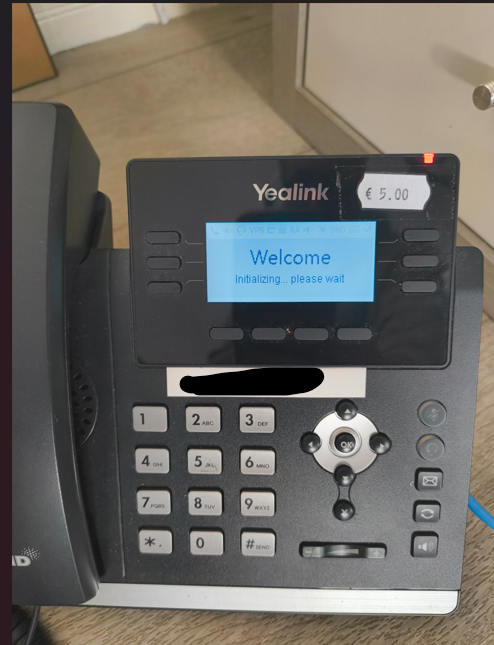
I was browsing a local charity shop when I spotted a Yealink T42U , with a €5 price tag. If you've worked in IT or telecoms, you'll immediately know these are serious business phones — the kind that normally costs €80–€150 new. I grabbed it without a second thought.
Now, setting up a PBX system had already been sitting on my project list for a while. I'd been curious about VoIP for ages, but never got around to actually doing it. This €5 phone was the push I needed.
What followed was a genuinely fun — and occasionally head-scratching — journey through VoIP, SIP trunks, outbound rules, dial plans, and number formatting. I hit real problems and fixed them in real time, and in this post, I'm going to walk you through the whole thing from scratch.
No experience with VoIP? Perfect. That's exactly who this is written for.
What Is VoIP — And Why Should You Care?
Before we touch any settings, let's get the basics sorted. I promise to keep this simple.
VoIP (Voice over IP) just means making phone calls over the internet instead of a traditional phone line. When you use WhatsApp or FaceTime to call someone, that's VoIP. We're doing the same thing, but with proper desk phones and a real phone number.
PBX stands for Private Branch Exchange. It's your internal phone system—the "brain" that connects your phones, routes calls, handles voicemail, and bridges your desk phones to the outside world.
Traditional PBX systems are large physical boxes that sit in a comms room or server rack. They cost thousands of euros to install and required telecoms engineers to make even basic changes. If you've worked in a business office, you've probably seen one.
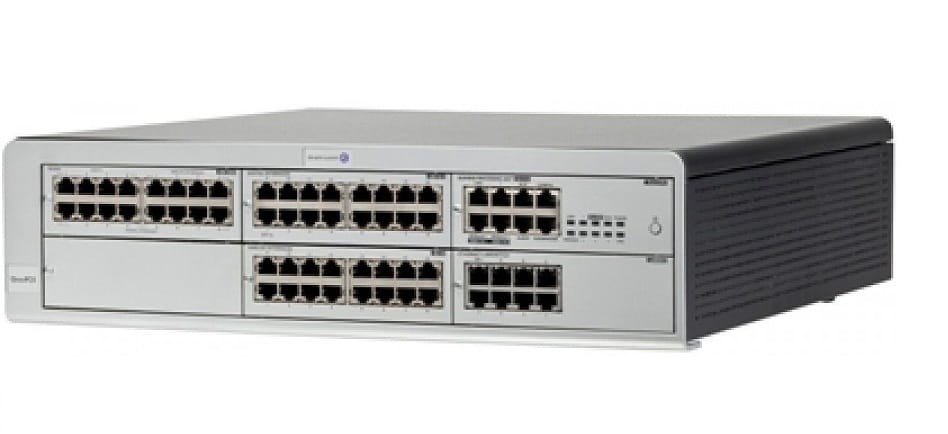
Modern PBX systems like 3CX run entirely in the cloud. You manage everything through a web browser. No hardware, no engineer, no massive bill.
SIP Trunk is the connection between your PBX and the outside telephone world. Think of it as your phone line — except it comes over the internet. Twilio provides ours in this guide.
Here's a simple overview of how it all fits together:
Your Desk Phone → 3CX (PBX) → SIP Trunk (Twilio) → The Internet → Other Phones
What You Need
Here's what I used to build this. The total cost was very low:
Yealink T42U SIP Phone: €5 (charity shop!)
You can also use a App on your phone.
3CX Free Cloud Account: Free
Twilio Account : Pay-as-you-go (Irish number ~$1/month)
Internet connection: Already had it
That's it. No server. No special hardware. No expensive licences.
Step 1 — Setting Up Your 3CX Free Account
Go to 3cx.com and sign up for an account. For this project, I used the free 3CX SMB (Shared) plan.
What Is the SMB Shared Plan?
It's a fully hosted PBX — meaning 3CX runs it all for you in the cloud. You don't install anything on your own machine. You just sign up and have a working phone system waiting for you immediately.
What you get:
- Up to 10 users
- No business verification required
- Access via a web browser from anywhere
- Mobile and desktop softphone apps included
- Completely free
Limitations to be aware of:
- It's a shared instance, so you don't control the underlying server
- Works best with the 3CX apps (we'll get around this with our Yealink phone, but it takes a bit of extra work)
- Limited customisation compared to a self-hosted install
For learning and home lab purposes, it's absolutely ideal. You're up and running in minutes.
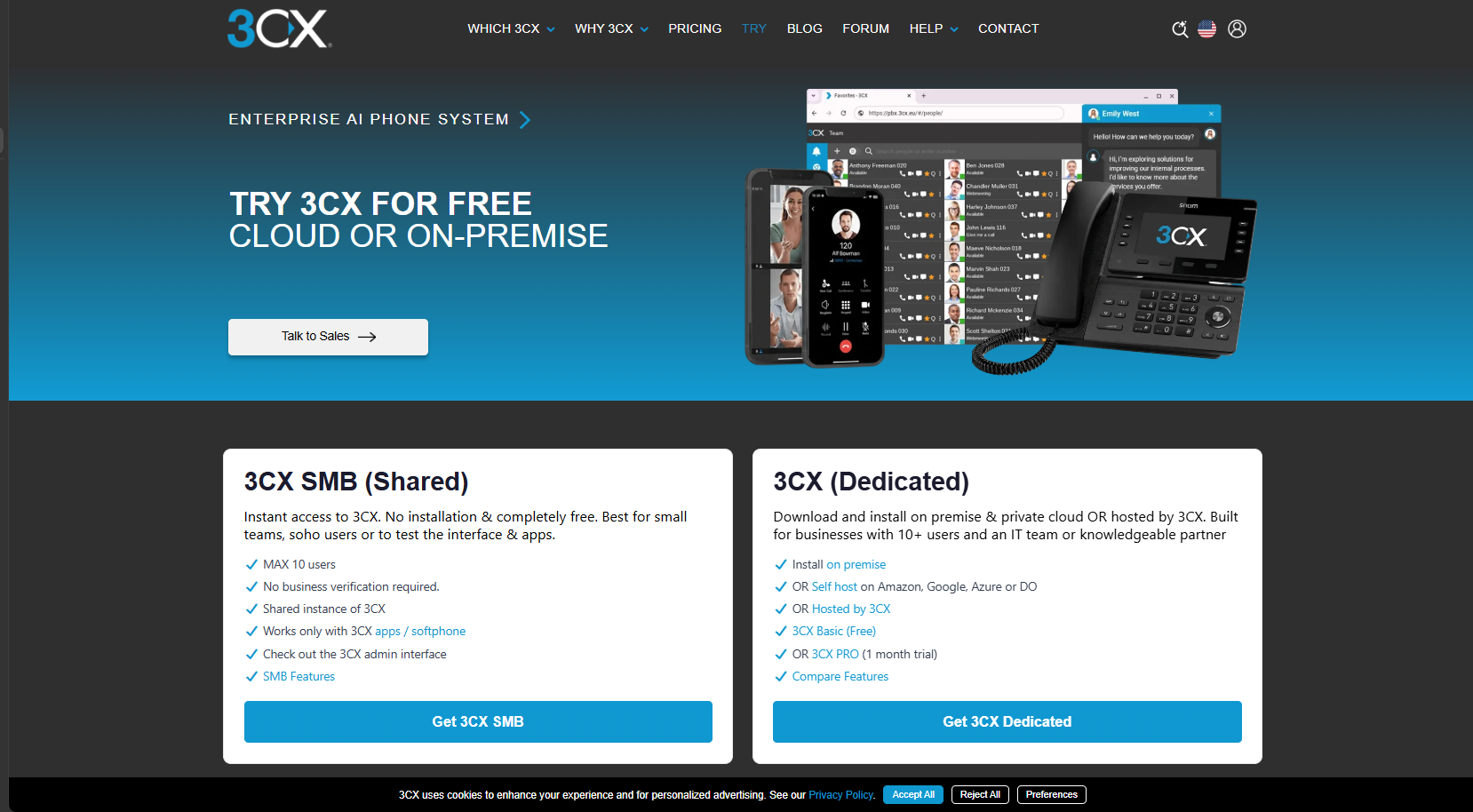
Once you've signed up, log in to your 3CX Admin Console. This is where all the configuration happens.
Step 2 — Setting Up Your SIP Trunk (Twilio)
A SIP trunk connects you to real phone numbers and the public telephone network. I went with Twilio for this project for a few reasons:
- They support Irish phone numbers
- They have a clean setup process
- Their pricing is pay-as-you-go with no monthly contract
- They integrate well with 3CX
Setting Up Twilio
- Go to twilio.com and create an account
2. Purchase an Irish phone number (costs around $1/month)
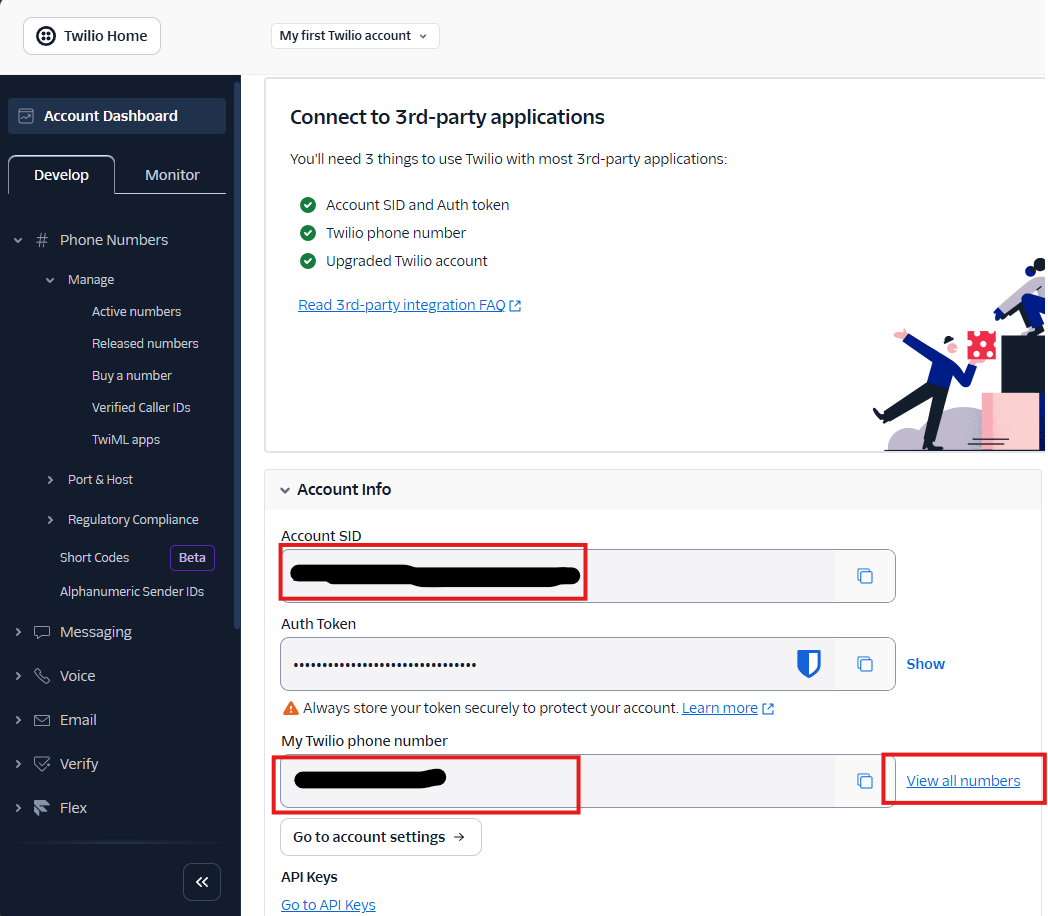
- Navigate to the Phone Numbers section, and click on Manage and then Buy New Number. Here you can choose your location, in my case, Ireland. I then had to provide some proof of address information, and wait a few days for the confirmation.
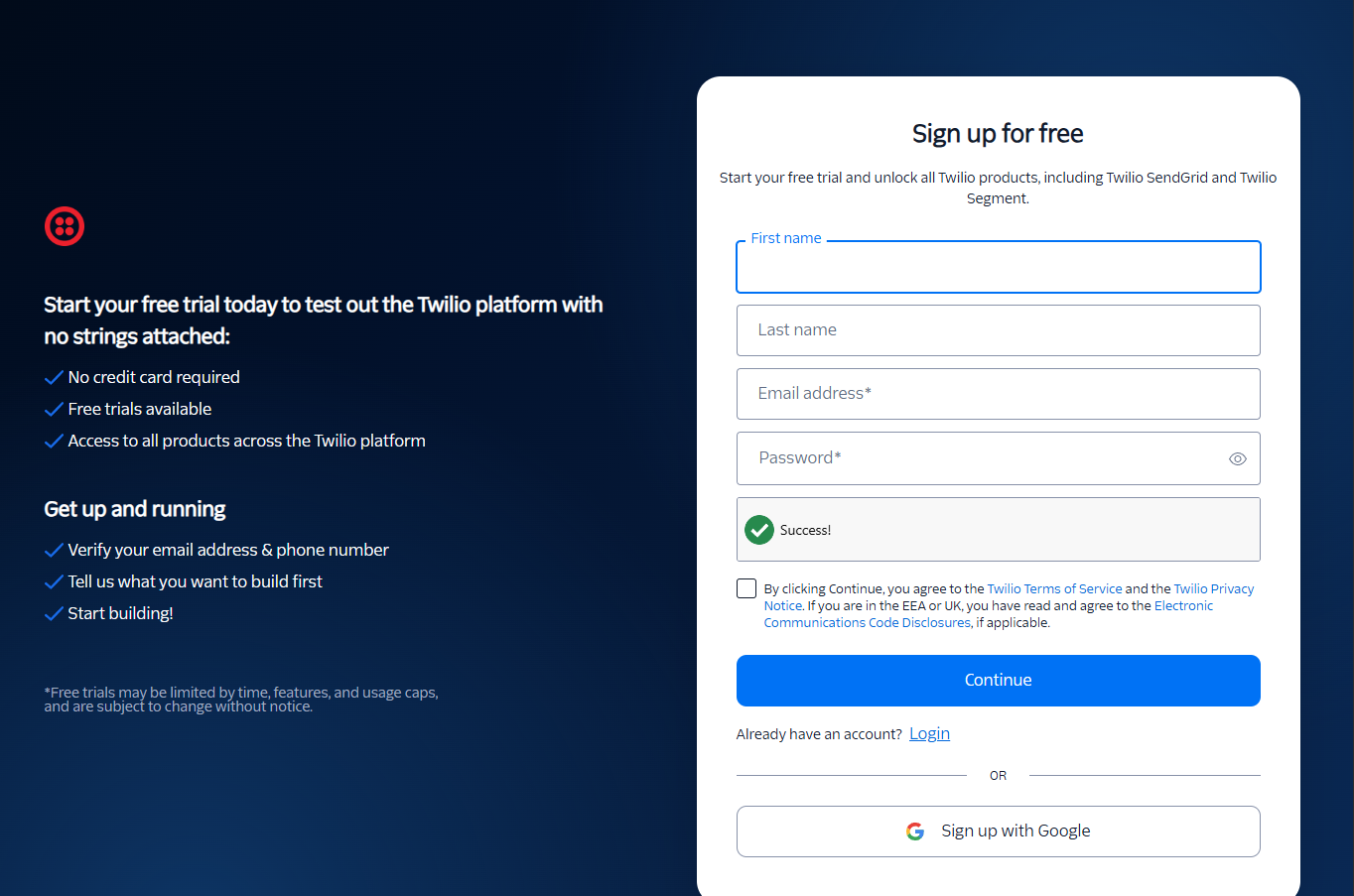
When you have your account verified you can go back to "Buy a Number" section on Twillo and purchase a number.
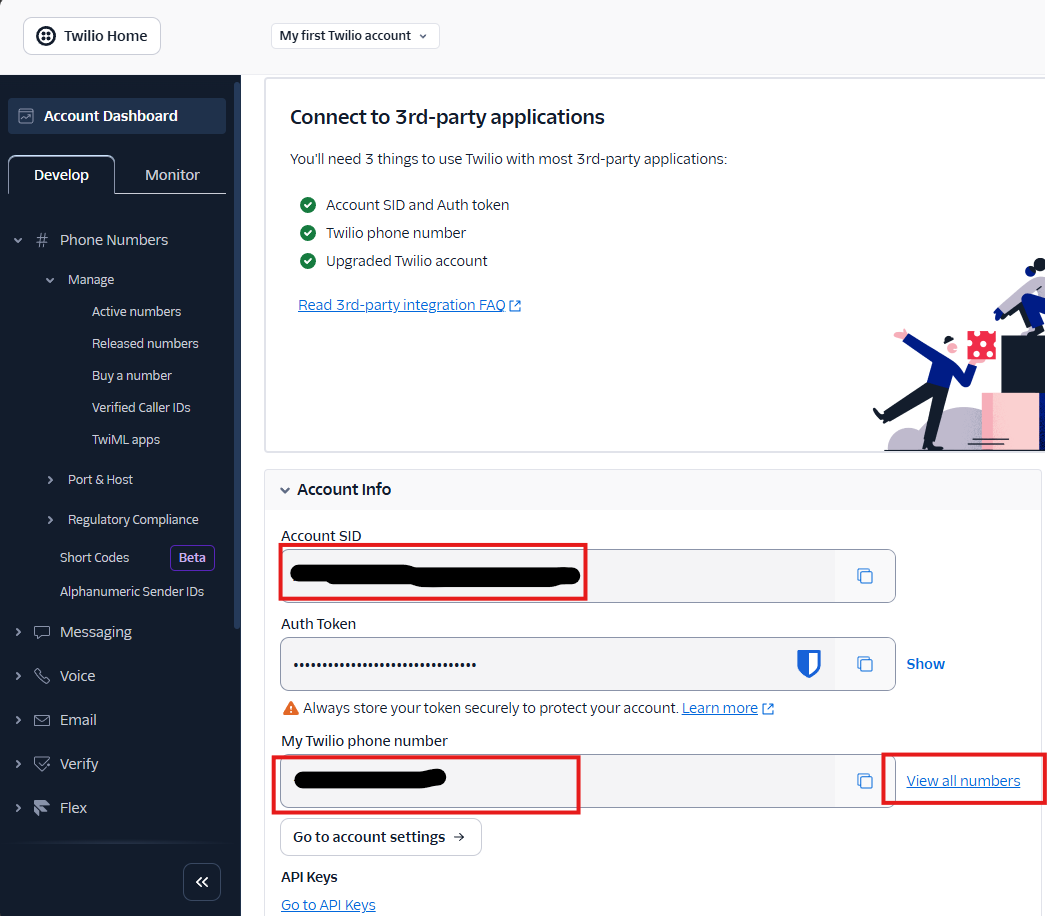
You can then add it to your "Account info" section below the Account SID and Auth Token.
You will need this on the 3CX site to connect your accounts later.
Adding the Trunk in 3CX
In your 3CX Admin Console:
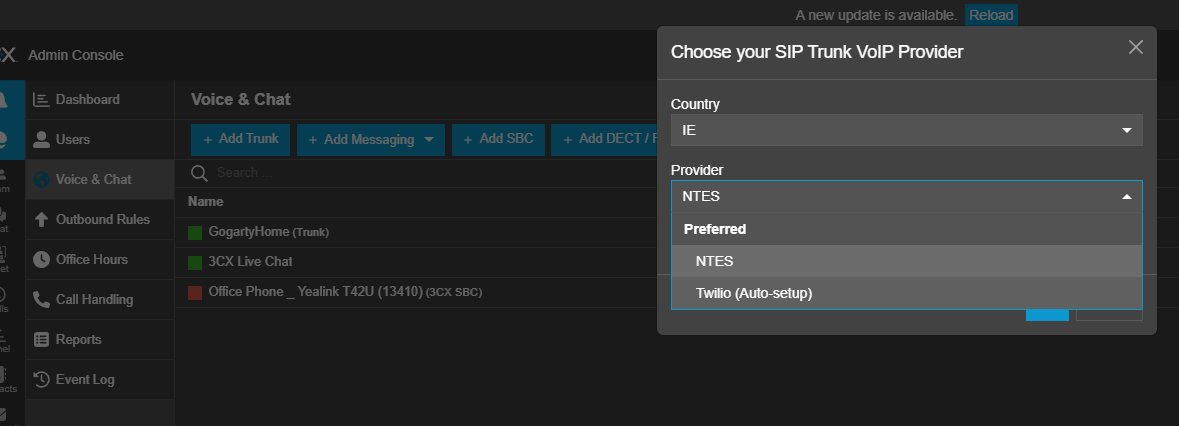
- Go to Voice & Chat → SIP Trunks
- Click Add Trunk
- Select your country (Ireland) and choose Twilio as the provider. This will allow you to "Auto Setup" your account,
- Enter your Twilio SIP server, Account SID and your Auth Token from the Twilio admin page,
- Add your Twilio phone number as the Main Trunk Number
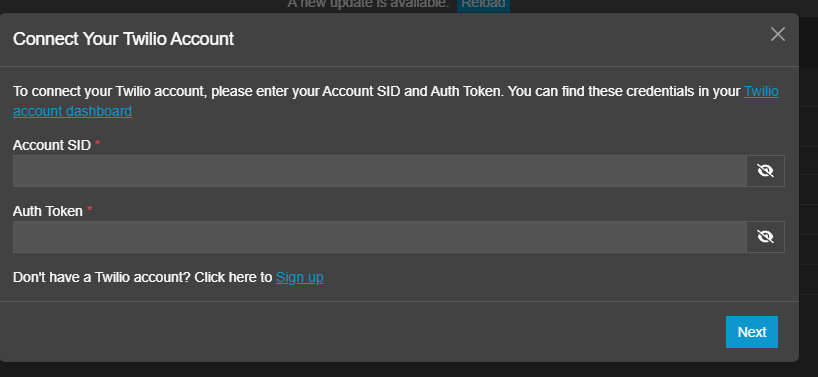
When configured correctly, the top of the trunk page will show a green Registered status. That means 3CX has successfully connected to Twilio, and you're ready to go.
Step 3 — Setting Up Inbound Calls
Getting calls to come in is actually the more straightforward part.
Since we used the Auto setup, you will now see that you have a Trunk setup and you will be able to make calls to the number you bought.

In practice, this means:
Someone dials your number
→ Twilio receives the call
→ 3CX matches it to your DID
→ Routes to your extension
→ Your desk phone rings
How to Verify It's Working
Go to Dashboard → Event Log in 3CX. When a call comes in you should see something like:
Incoming call from +3538XXXXXXX to +353412140951
Matched DID rule
Routing to Extension 100
If you're not seeing that, check that the DID number format in 3CX matches exactly what Twilio is sending. This is one of the most common issues — more on troubleshooting later.
Step 4 — Auto-Provisioning the Yealink Phone
This is where the Yealink T42U comes in. 3CX has a feature called Auto Provisioning that automatically pushes all phone configuration — extension number, SIP credentials, display name — directly to the phone. You don't need to manually configure anything on the phone itself.
I did have some issues with this, as the phone did not have the correct Firmware to work with 3CX. It wasn't that bad to get it up to date.
When the phone is connected to your network, you can browse to its IP address and see the phone's administration page.
I downloaded the required firmware updates from the Yealink website and pushed them to the phone.
By now, you should have your account set up, but you can also set up additional accounts. For this tutorial, I am just going to add the Desk Phone to my account.
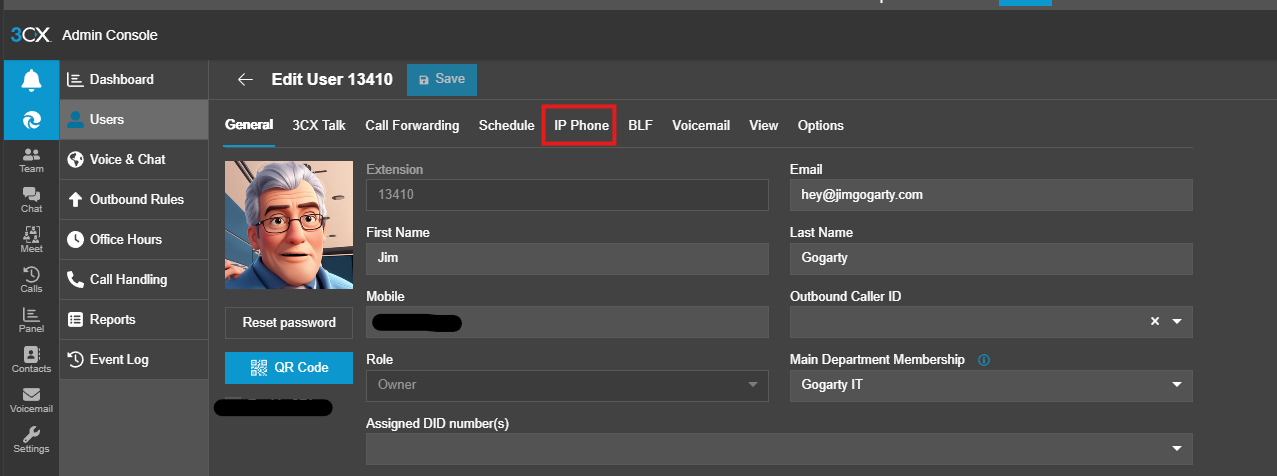
On the 3CX page, click on your account, and there you will see an option to add an IP Phone.
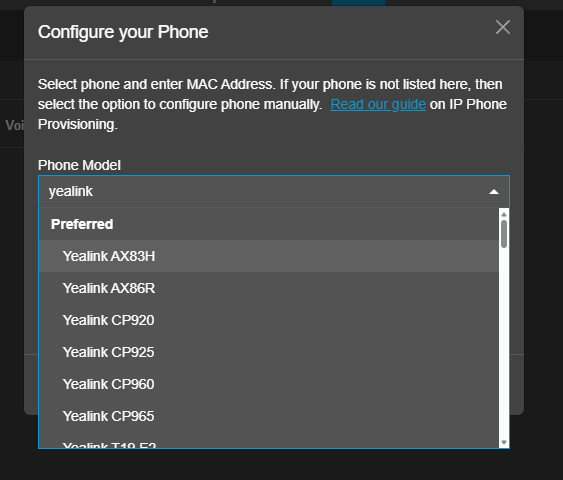
You can then choose your phone from the options,
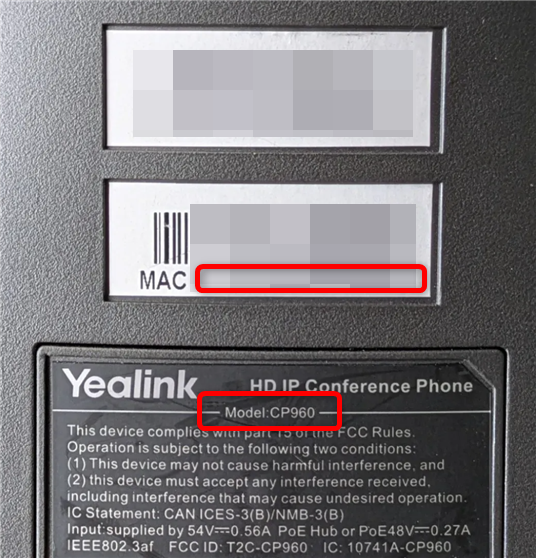
Then add the MAC address of your Phone, and click Next.
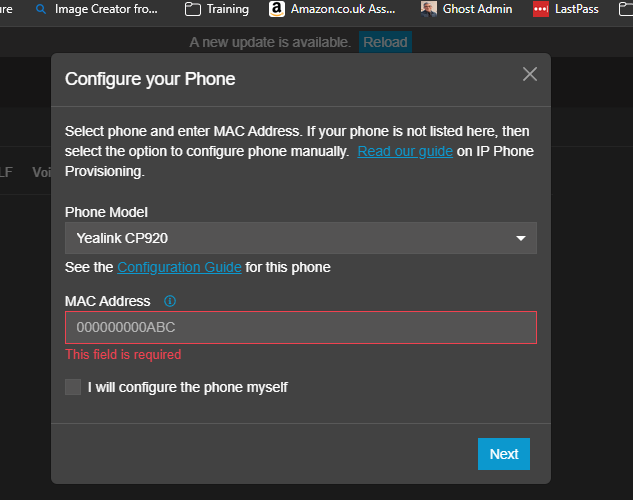
3CX will automatically push the configuration to the phone. Within a minute or two, the phone's screen should show your extension number and display name, and the line indicator should be solid green.
Step 5 — Setting Up Outbound Calls (Where Things Got Interesting)
This is where my real learning happened. Once the phone was registered and inbound calls were working, I picked up the Yealink, dialled a number, and got:
"3CX cannot reach the number you called."
This is actually one of the most common issues with 3CX setups, and it almost always comes down to one of three things:
- No outbound rule matches the number you dialled
- The wrong trunk is being selected
- The number format is not what the provider expects
Let me explain how I worked through all three.
Understanding Outbound Rules
Think of Outbound Rules as the traffic management system for your calls. When you dial a number, 3CX checks its rules from top to bottom and asks: "Does this number match one of my rules?" If it finds a match, it knows which trunk to send the call out on and how to format the number.
If nothing matches, you get that error message.
The Number Format Problem
This was my first issue. I was dialling:
0831234567
But Twilio (like most modern SIP providers) expects numbers in E.164 international format:
+353831234567
E.164 is the international standard for phone numbers. It's basically: + then the country code, then the number without the leading zero.
So for Irish numbers:
- You dial: 083 123 4567
- Provider expects: +353831234567
Creating the Outbound Rules
Go to Voice & Chat → Outbound Rules and create the following rules.
Rule 1 — Irish National Calls
| Setting | Value |
|---|---|
| Rule Name | Ireland National |
| Prefix | 01,02,03,04,05,06,07,08,09 |
| Strip Digits | 1 |
| Prepend | +353 |
| Route 1 | Your Twilio trunk |
Why this works:
When you dial 0834743838, 3CX:
- Matches the prefix
08 - Strips the leading
0 - Adds
+353 - Sends +353831234567 to Twilio
✅ Twilio accepts it, and the call goes through.
Important note: I originally set the prefix to just 0 Instead of listing all the digits. This caused a major problem with international calls, which I'll explain next.
Rule 2 — International Calls
| Setting | Value |
|---|---|
| Rule Name | International |
| Prefix | 00 |
| Strip Digits | 2 |
| Prepend | + |
| Route 1 | Your Twilio trunk |
Why this works:
When you dial `00442812345678 (a UK number in international dialling format):
- 3CX matches the
00prefix - Strips the
00 - Adds
+ - Sends `+442812345678 to Twilio
✅ Correct international format.
Rule 3 — Emergency Numbers
| Setting | Value |
|---|---|
| Rule Name | Emergency |
| Prefix | 112,999 |
| Strip Digits | 0 |
| Prepend | (leave blank) |
| Route 1 | Your Twilio trunk |
Critical: Make sure this routes to your trunk, not to "Blocked". In a real-world setup, blocking 112 or 999 is dangerous. Don't skip this.
The Rule Order Problem (The Biggest Gotcha)
This one caught me out and is worth explaining in detail, because it's the kind of thing that seems obvious in hindsight but is really easy to miss.
After setting up my outbound rules, I tried calling a UK number and it still failed. Looking at the call logs, I could see 3CX was sending this to Twilio:
+3530442812345678
That's clearly wrong. What happened?
The problem was rule orderthe order of the rules. 3CX processes rules from top to bottom and stops at the first match. My rules were ordered like this:
- Ireland National (prefix:
0) - International (prefix:
00) - Emergency
Because my Ireland rule used the prefix 0 and 00 starts with 0, the Ireland rule was catching international calls first — before the international rule even got a look in.
So `00442812345678 was being processed like this:
The fix was simple: Change the Irish national prefix from 0 to 01,02,03,04,05,06,07,08,09.
This makes the Ireland rule specific enough that it won't accidentally match 00. The international rule can then catch 00 properly.
With that change, the call flow becomes:
Dial: 00442812345678
→ Rule 1 (Ireland): doesn't match (doesn't start with 01–09)
→ Rule 2 (International): matches 00 ✅
→ Strip 00, add +
→ Sends: +442812345678
→ Call connects
Troubleshooting — What to Check When Things Go Wrong
Here's a quick reference based on the issues I actually ran into.
"3CX cannot reach the number you called"
This means no outbound rule matched. Check:
- That you have an outbound rule with the right prefix for the number you dialled
- The rule is assigned to your trunk
- That the trunk shows as Registered
Call connects to trunk but fails immediately
This usually means a number format issue. Go to Reports → Outbound Calls and check the Callee column — this shows the actual number 3CX sent to your provider. If it looks wrong, fix your Strip Digits and Prepend settings.
Inbound calls are not ringing
Check that:
- The DID in your SIP Trunk settings matches exactly what Twilio sends
- Go to Dashboard → Event Log when a call comes in, and look for what DID number is appearing
Rule matches the wrong calls
Check your rule order. Rules are processed top to bottom. More specific rules (like 00) need to be above more general ones (like 0).
My Final Outbound Rule Setup
After working through all of this, here's the clean setup I ended up with:
| Priority | Rule Name | Prefix | Strip | Prepend | Purpose |
|---|---|---|---|---|---|
| 1 | Emergency | 112,999 | 0 | — | Emergency services |
| 2 | International | 00 | 2 | + | International calls |
| 3 | Ireland National | 01,02,03,04,05,06,07,08,09 | 1 | +353 | All Irish numbers |
This setup will handle:
- ✅ Irish mobile numbers (083, 085, 086, 087, 089)
- ✅ Irish landlines (01, 021, 061, etc.)
- ✅ UK and international numbers (0044, 0049, etc.)
- ✅ Emergency services (112, 999)
The Final Result
After all of that:
- ✅ Inbound calls working — phone rings when someone calls my number
- ✅ Outbound Irish calls working — national and mobile
- ✅ Outbound international calls working — UK and beyond
- ✅ Phone auto-provisioned via 3CX — no manual configuration needed
- ✅ Total hardware cost: €5
What's Next?
If you want to take this further, 3CX supports a lot of additional features:
- Mobile apps — use 3CX on your iPhone or Android as a softphone
- Voicemail — set up per-user voicemail with email notifications
- Digital Receptionist / IVR — "Press 1 for sales, press 2 for support"
- Ring Groups — ring multiple phones simultaneously
- Call Queues — for handling multiple incoming calls
- Multiple extensions — add more users and phones
Final Thoughts
What started as a random €5 find turned into a genuinely fun learning project. VoIP and PBX systems can seem intimidating at first — lots of jargon, lots of settings — but once you understand the basics, it all clicks into place fairly quickly.
The biggest lesson I took from this: the dial plan is everything. Get the number formatting right and almost everything else falls into place. Get it wrong, and you'll spend a lot of time staring at call logs, wondering why your calls are failing.
If you're into IT, networking, or just like building things, I'd highly recommend giving this a go. The free 3CX account and Twilio's pay-as-you-go pricing mean you can set up a working phone system for almost nothing.
And if you find a SIP phone in a charity shop... you know what to do.
If you found this helpful, I'll be posting more home lab and real-world IT projects on jimgogarty.com. Feel free to reach out if you get stuck — these things always look easier in a tutorial than they are in real life.