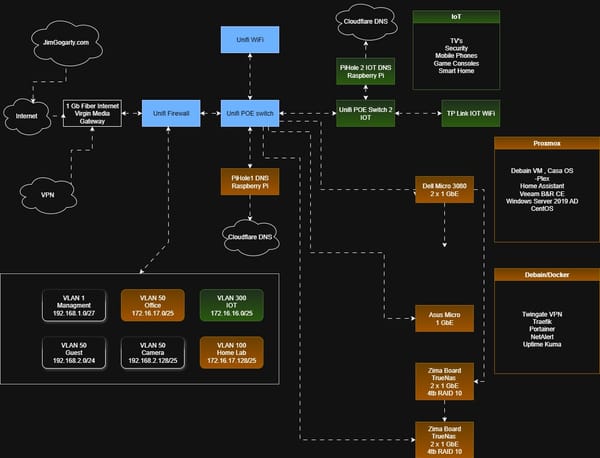
Is your digital home secure?


Most people lock their front door at night.
Many have a home alarm.
Some install cameras or smart doorbells.
And most people have home insurance.
All of these things protect your physical home.
But what about your digital home?
Today, many houses contain dozens of internet-connected devices:
- Smart TVs
- Doorbell cameras
- Smart fridges
- Voice assistants
- Security cameras
- Gaming consoles
- Smart thermostats
- Tablets and phones
Every one of these devices connects to the internet.
And every one of them is sending and receiving data.
Smart TVs check for updates.
Doorbell cameras upload video to cloud services.
Voice assistants send voice commands to cloud services.
Smart appliances communicate with manufacturer servers.
So the real question becomes:
Where is that data going, and who is it talking to?
For many homes, there’s another important question.
What about your children online?
Kids today grow up surrounded by connected devices:
- Tablets
- Gaming consoles
- Smart TVs
- Phones
- School laptops
- Voice assistants
These devices can access almost anything on the internet.
Without proper controls, children may be exposed to:
- Inappropriate content
- Online tracking and data collection
- Malicious websites
- Scams or phishing attempts
- Unsafe online communities
There is also the issue of privacy.
Many apps, games, and online services collect large amounts of data about users.
Children often click “accept” without understanding what information they are sharing.
A home network with proper filtering and monitoring can help you:
- Limit access to harmful content
- Reduce tracking and advertising
- Protect family devices from malware
- Give you visibility into what devices are doing online
Just like locks and alarms protect your physical home, network security tools help protect your digital household.
And in many homes today, that includes protecting your children’s online safety and privacy.
The Problem with Default ISP Routers
Most homes rely entirely on the router provided by their Internet Service Provider.
These devices are designed to be:
- Cheap
- Easy to deploy
- Low maintenance
Security is usually basic at best.
They often lack:
- Advanced threat protection
- Visibility into network activity
- Content filtering
- Geo-blocking
- Proper intrusion protection
In other words, you’re trusting a very simple device to protect everything in your home.
That’s like installing a front door but never locking it.
Quick Security Wins (No Hardware Needed)
Improving your home network security doesn’t have to start with buying expensive equipment.
Here are a few steps you can take, ordered from easiest to more technical.
You can start small and build up over time.
1. Use a Privacy-Focused Browser (Easiest)
One of the simplest ways to improve your security is by changing the browser you use.
Some browsers include built-in protection against:
- Ads
- Trackers
- Malicious scripts
- Fingerprinting
A good example is Brave Browsersecurity-focused.
It automatically blocks many trackers and ads and improves privacy without requiring technical setup.
Other good options include:
- Firefox with privacy extensions
- Safari with tracking protection
- Edge with enhanced security settings
This step takes only a few minutes and immediately reduces tracking and malicious advertising.
2. Change Your DNS Settings (Easy)
DNS works like the phonebook of the internet.
When you type a website name, DNS translates it into the IP address needed to reach that site.
Some DNS providers block known malicious domains before your device can connect to them.
Cloudflare Family DNS
Block malware
1.1.1.2
1.0.0.2
Block malware + adult content
1.1.1.3
1.0.0.3
Other good options
Quad9 (security-focused)
9.9.9.9
149.112.112.112
OpenDNS Family Shield
208.67.222.123
208.67.220.123
How to Change DNS on a Computer
Windows
- Open Settings
- Go to Network & Internet
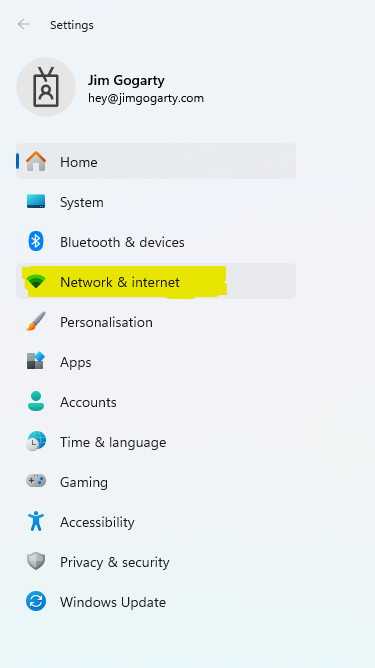
- Click Advanced Network Settings
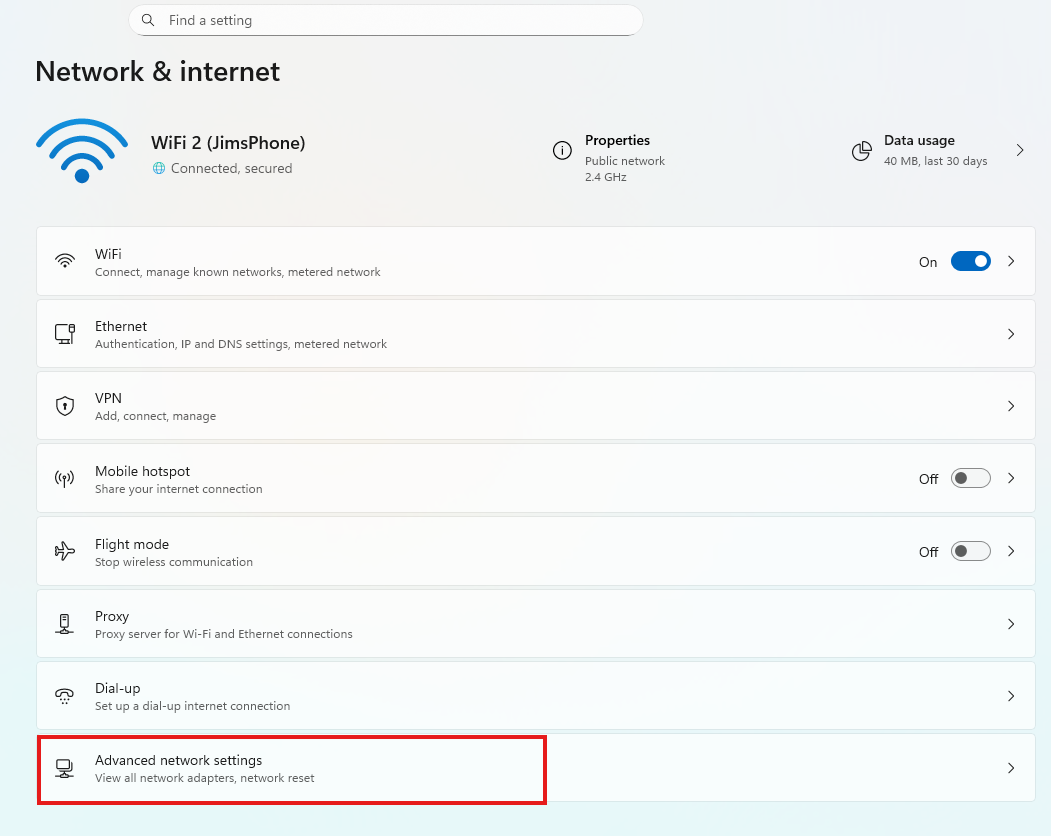
- Expand on your WiFi, and click on the edit button
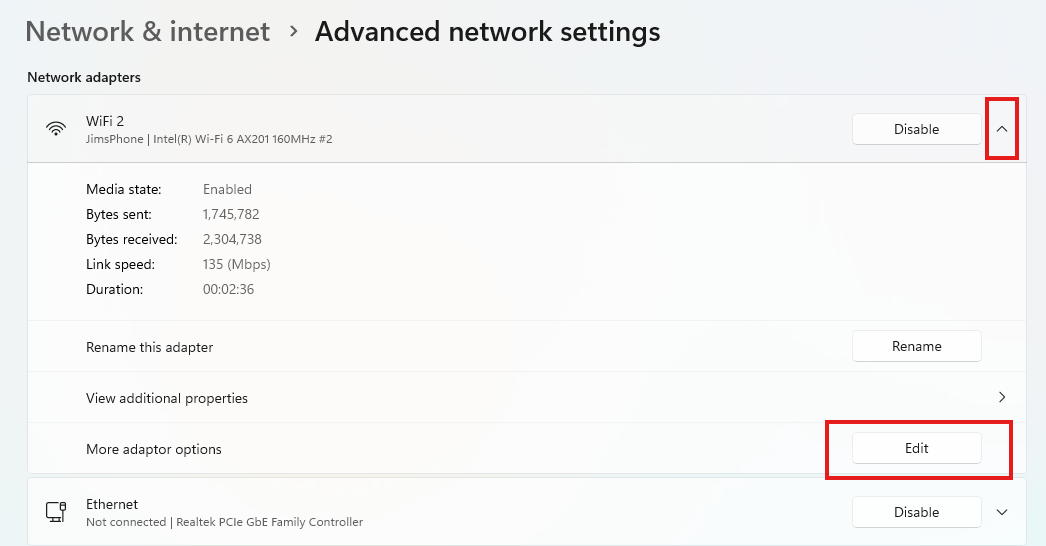
- Double Click on the "Internet protocoll Version4 (TCP/IPv4) field
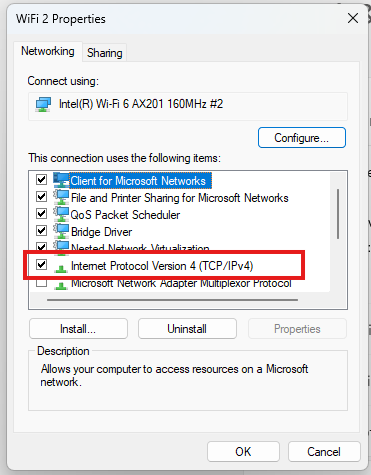
- Open Internet Protocol Version 4 (IPv4)
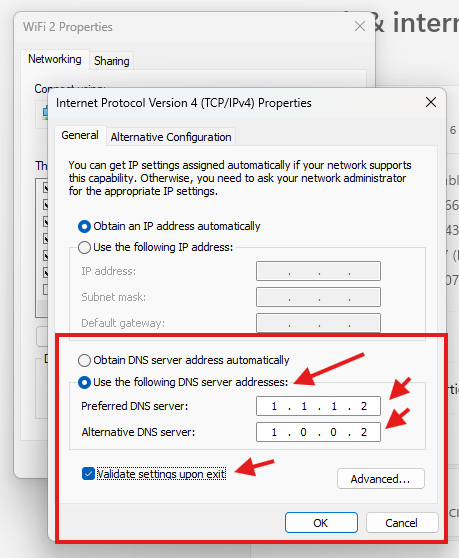
- From here, you can update the DNS settings on your device to the DNS provider you like.
Click on the "Use the following DNS server addresses:"
Then add the DNS IP address you like,
finaly Click on the "Validate settings upon exit"
This will check the settings you have entered before saving. If you enter something incorrectly here, you will be asked to re-enter the data.
Finally click "OK" and reboot your computer.
This will save the settings,
Example: If you want to block Malware
Preferred DNS
1.1.1.2
Alternate DNS
1.0.0.2
Or to block Malware and Adult content*
Block malware + adult content
1.1.1.3
1.0.0.3
* Just a note, no system is perfect, but this will block out most sites. Cloudflare regularly updates its list of known malware sites and adult content in the background.
macOS
- Open System Settings
- Go to Network
- Select your network connection
- Click Details
- Open the DNS tab
- Add the new DNS servers
How to Change DNS on a Phone or Kids' Mobile Devices.
How to Change DNS on a Phone or Kids' Mobile Devices.
iPhone / iPad
- Open Settings
- Tap Wi-Fi
- Tap the i icon beside your network
- Select Configure DNS
- Change from Automatic to Manual
- Add your DNS servers
Example:
1.1.1.2
1.0.0.2
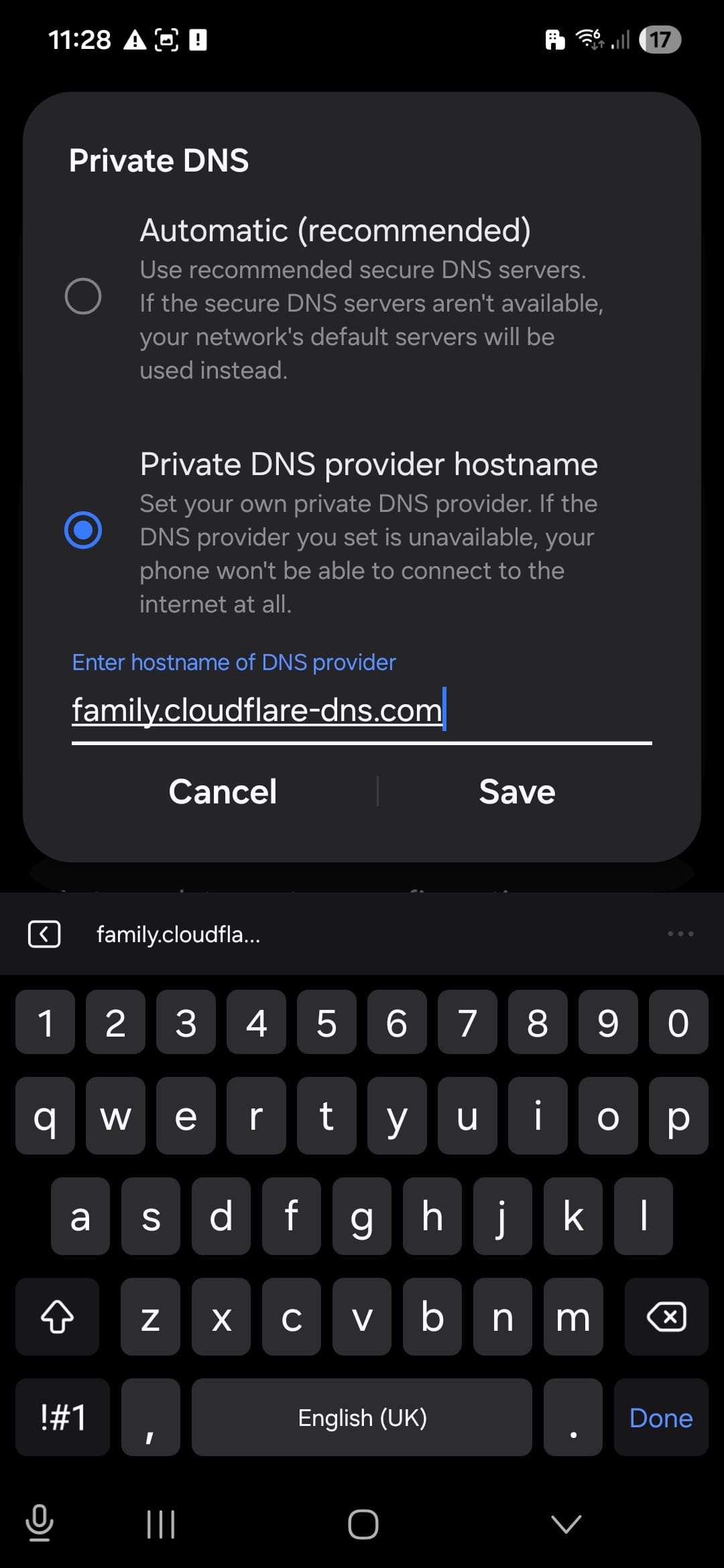
Android
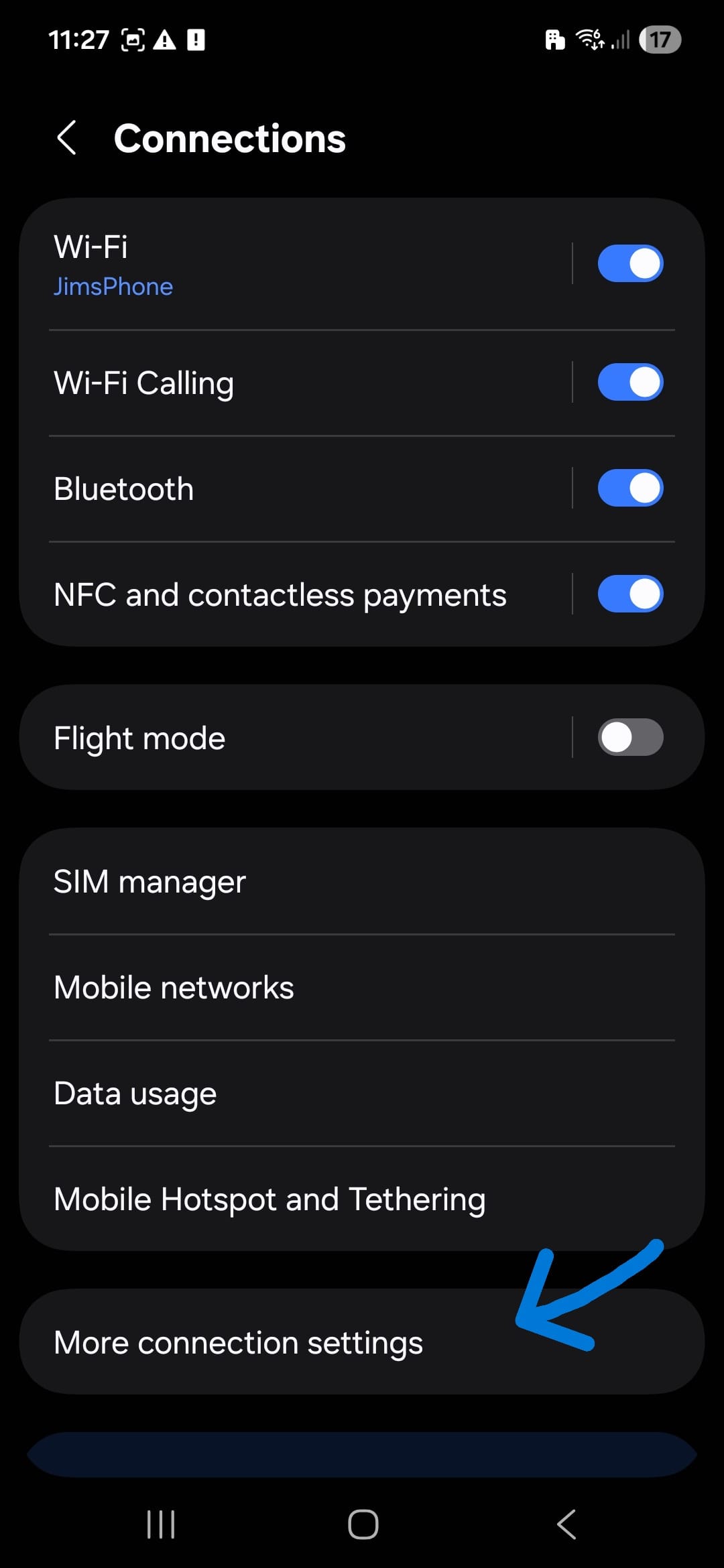
Steps vary slightly by manufacturer, but generally:
- Open Settings
- Go to Network & Internet
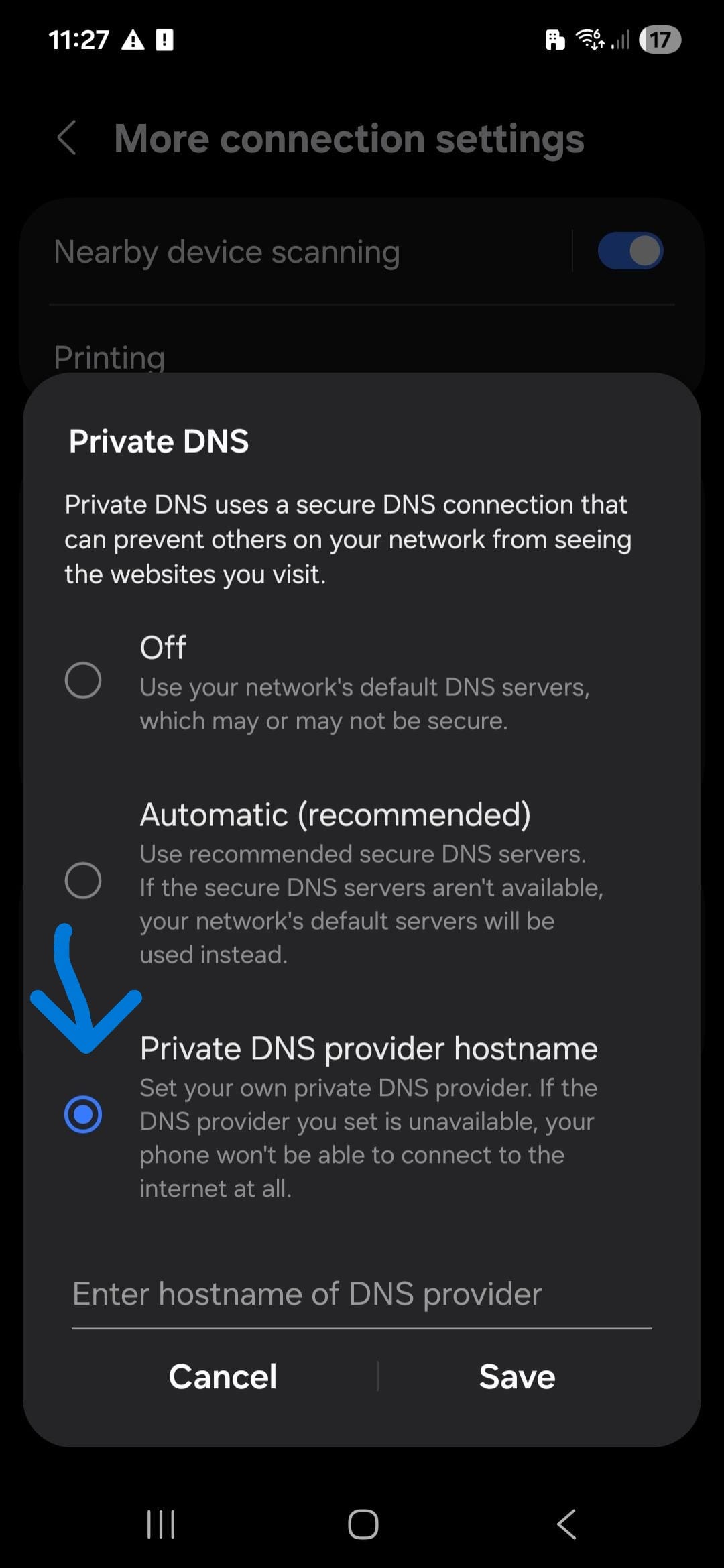
- Tap Private DNS
- Choose the Private DNS provider hostname
Example:
family.cloudflare-dns.com
This enables automatic malware and content filtering.
3. Pi-hole (Intermediate)
For people who want more control, Pi-hole is a powerful option.
It runs on a small device, such as a Raspberry Pi, Raspberry Pi and acts as a network-wide DNS filter.
Benefits include:
- Blocks ads across the entire network
- Blocks trackers
- Blocks malicious domains
- Improves privacy
Because it runs at the network level, every device benefits automatically.
Even smart TVs and IoT devices.
This requires a bit more setup, but is still very achievable for beginners interested in learning.
4. Install a Home Firewall (More Advanced)
A dedicated firewall provides the most visibility and protection.
Even entry-level home firewalls can offer:
- Content filtering
- Geo-blocking
- Intrusion protection
- Device monitoring
- Traffic analysis
Popular options include:
- Firewalla
- Ubiquiti UniFi Gateway
- Netgate pfSense appliances
- Protectli devices running OPNsense or pfSense
These can protect your entire network, including devices that cannot install security software.
While this step is more technical, it’s a great starting point for people interested in networking or cybersecurity.
The Key Idea
You don’t need to do everything at once.
Start with the easiest improvements:
- Use a secure browser
- Change your DNS provider
- Add network filtering like Pi-hole
- Consider a dedicated firewall
Each step adds another layer of protection for your digital home.
Final Thoughts
Most people take steps to protect their homes with:
- Locks
- Alarms
- Cameras
- Insurance
But the digital side of the home is often overlooked.
Today, our homes contain dozens of connected devices. Phones, tablets, TVs, gaming consoles, smart appliances, and cameras are all communicating with the internet every day.
A few simple steps can significantly improve your security:
- Use a privacy-focused browser
- Change your DNS provider
- Add network filtering such as Pi-hole
- Consider a dedicated home firewall
You don’t have to implement everything at once. Even small improvements can make a meaningful difference to your privacy and security online.
Need Help Setting This Up?
If you'd like help setting up any of the ideas mentioned in this article, I’m happy to help.
Whether it's:
- Changing DNS settings
- Setting up safer internet access for your family
- Installing Pi-hole
- Choosing and configuring a home firewall
Feel free to get in touch.
📧 Email me today:
jim@jimgogarty.com
And if you found this article useful, feel free to share it with someone who might benefit from improving their home network security.