Building a Home SIEM, Part 1: Deploying the Elastic Stack
I've wanted a proper SIEM in my home lab for a while. Not because my house is under attack by nation-state hackers (as far as I know),

I've wanted a proper SIEM in my home lab for a while. Not because my house is under attack by nation-state hackers (as far as I know), but because being able to see what's happening on your network — every DNS lookup, every login, every web request — is genuinely useful, and it's the same skill set that underpins a security operations job.
This is Part 1 of a short series. I will start up the core Elastic Stack — Elasticsearch, Kibana, and Logstash — on a dedicated VM. In Part 2 I will connect actual log sources like my Pi-hole DNS, an SSO provider, a reverse proxy dockers and start turning raw logs into something I can hunt through.
Fair warning: I hit a lot of small snags doing this. I've left them in.
What I built
A quick mental model before we start. The three pieces each do one job:
- Elasticsearch — the database. It stores and indexes all your logs, making them searchable fast.
- Logstash — the ingest pipeline. Logs come in (often messy), Logstash parses them into structured fields, and hands them to Elasticsearch.
- Kibana — the front end. Dashboards, searching, visualisations. This is what you actually look at.
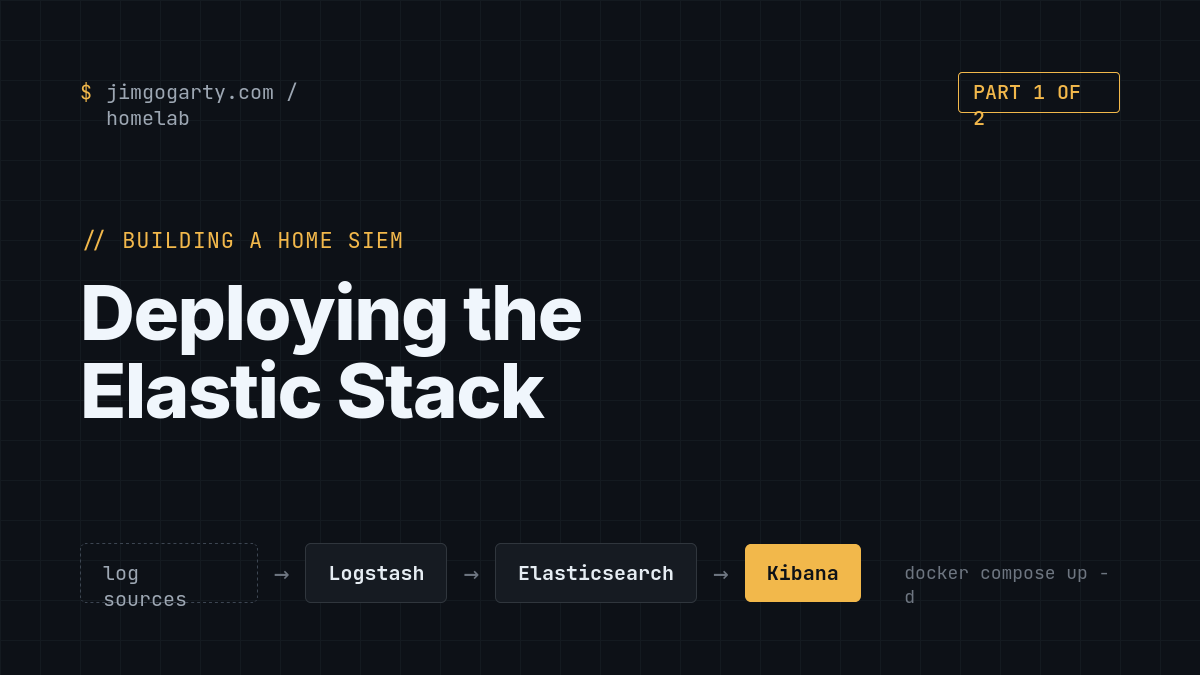
Data flows left to right: sources → Logstash → Elasticsearch → Kibana.
For this part I will build the middle three and confirm they talk to each other. No log sources yet — that's Part 2.
The VM
I gave this its own VM rather than piling it onto an existing box. Elasticsearch is memory-hungry, and I didn't want it fighting anything else for RAM.
My spec:
- OS: Ubuntu Server 24.04 LTS
- RAM: 8 GB
- CPU: 4 vCPU
- Disk: 80 GB
- A static IP
8 GB is a sensible floor. Elasticsearch alone will happily eat 2 GB of heap, and you want headroom. If you're tighter on resources, you can run it leaner, but expect it to feel sluggish.
Step 1: Prep the host
SSH in and get the box up to date:
sudo apt update && sudo apt upgrade -yNow the one setting people always miss. Elasticsearch needs a kernel parameter raised, or it will refuse to start:
sudo sysctl -w vm.max_map_count=262144
echo "vm.max_map_count=262144" | sudo tee -a /etc/sysctl.conf
sudo sysctl -p
Verify it's stuck:
sysctl vm.max_map_countYou want to see vm.max_map_count = 262144. If you skip this, Elasticsearch crashes on boot with a cryptic memory-map error, and you'll spend twenty minutes confused. Ask me how I know.
Step 2: Install Docker
I'm running the whole stack in Docker Compose — it keeps everything tidy and reproducible.
curl -fsSL https://get.docker.com -o get-docker.sh
sudo sh get-docker.sh
sudo usermod -aG docker $USER
Log out and back in (so the group change takes effect), then check:
docker --version
docker compose version
Step 3: The stack directory and compose file
mkdir -p ~/siem/logstash/pipeline
cd ~/siem
nano docker-compose.yml
Here's the compose file. I'll explain the important bits underneath.
services:

  elasticsearch:
    image: docker.elastic.co/elasticsearch/elasticsearch:8.15.3
    container_name: elasticsearch
    restart: unless-stopped
    environment:
      - node.name=elasticsearch
      - cluster.name=homelab-siem
      - discovery.type=single-node
      - xpack.security.enabled=true
      - ELASTIC_PASSWORD=${ELASTIC_PASSWORD}
      - "ES_JAVA_OPTS=-Xms2g -Xmx2g"
      - bootstrap.memory_lock=true
    ulimits:
      memlock:
        soft: -1
        hard: -1
    volumes:
      - elasticsearch_data:/usr/share/elasticsearch/data
    ports:
      - "9200:9200"
    networks:
      - elastic
    healthcheck:
      test: ["CMD-SHELL", "curl -s -o /dev/null -w '%{http_code}' -u elastic:${ELASTIC_PASSWORD} http://localhost:9200/_cluster/health | grep -q 200"]
      interval: 30s
      timeout: 10s
      retries: 5
      start_period: 60s

  kibana:
    image: docker.elastic.co/kibana/kibana:8.15.3
    container_name: kibana
    restart: unless-stopped
    environment:
      - SERVER_NAME=kibana
      - ELASTICSEARCH_HOSTS=http://elasticsearch:9200
      - ELASTICSEARCH_USERNAME=kibana_system
      - ELASTICSEARCH_PASSWORD=${KIBANA_PASSWORD}
    ports:
      - "5601:5601"
    networks:
      - elastic
    depends_on:
      elasticsearch:
        condition: service_healthy

  logstash:
    image: docker.elastic.co/logstash/logstash:8.15.3
    container_name: logstash
    restart: unless-stopped
    ports:
      - "5044:5044"
      - "5514:5514/udp"
      - "5514:5514/tcp"
    volumes:
      - ./logstash/pipeline:/usr/share/logstash/pipeline:ro
    networks:
      - elastic
    depends_on:
      elasticsearch:
        condition: service_healthy
    environment:
      - "LS_JAVA_OPTS=-Xms512m -Xmx512m"
      - "ELASTIC_PASSWORD=${ELASTIC_PASSWORD}"
      - "XPACK_MONITORING_ENABLED=false"

volumes:
  elasticsearch_data:

networks:
  elastic:
    driver: bridge
A few things worth pointing out:
- Version
8.15.3— that's what I built on. Newer releases exist; pin whichever version you choose and keep all three images on the same one. discovery.type=single-node— tells Elasticsearch it's a one-node cluster and not to go looking for peers. Right for a home lab.- The health check — I use an HTTP status-code check rather than grepping the JSON response. An earlier version of mine grepped for
"status":"green", and it kept failing, because a single-node cluster with replicas sits at yellow, not green. Checking for HTTP 200 sidesteps that entirely. ELASTICSEARCH_HOSTS=http://elasticsearch:9200— note the http, not https. I'm running plain HTTP internally (it's all inside one Docker network on one VM). If you set this tohttpswhile Elasticsearch serves HTTP, Kibana throws a baffling "wrong version number" TLS error. Match the scheme.XPACK_MONITORING_ENABLED=falseon Logstash — silences a stream of 401 errors in the logs that are otherwise just noise.- Port 5514 on Logstash is where we'll receive syslog in Part 2. Nothing uses it yet.
Step 4: The environment file
The compose file references two passwords via ${...}. Those live in a .env file next to it:
nano ~/siem/.envELASTIC_PASSWORD=PUT_A_STRONG_PASSWORD_HERE
KIBANA_PASSWORD=Generate a solid password for ELASTIC_PASSWORD:
openssl rand -base64 24Leave KIBANA_PASSWORD empty — we set that in a moment, after Elasticsearch is running. And lock the file down so only you can read it:
chmod 600 ~/siem/.envStep 5: Start Elasticsearch first
Order matters here. Bring up Elasticsearch on its own and let it settle before starting the others:
cd ~/siem
sudo docker compose up -d elasticsearch
Give it 60–90 seconds (first boot does a lot of one-time setup), then check:
sudo docker compose psYou want Elasticsearch showing healthy. If it still says starting, wait a bit longer. Then test it directly:
curl -u elastic:YOUR_ELASTIC_PASSWORD http://localhost:9200If you get a chunk of JSON with a cluster name back, you're in business.
Step 6: Set the Kibana service password
Kibana doesn't log in as the elastic superuser — it uses a dedicated built-in account called kibana_system. We need to set its password:
sudo docker exec -it elasticsearch \
  /usr/share/elasticsearch/bin/elasticsearch-reset-password -u kibana_system
It prints a new password. Copy it into your .env as KIBANA_PASSWORD.
Step 7: Bring up Kibana and Logstash
sudo docker compose up -d kibana logstash
sudo docker compose ps
Wait a minute, and all three should be up. Kibana takes the longest to become available — it does its own initialisation against Elasticsearch on first start.
Then open Kibana in a browser:
http://YOUR_VM_IP:5601Log in as elastic with your ELASTIC_PASSWORD. If you see the Kibana home screen, the stack is alive.
A word on security
It would be a bit rich to build a security tool and leave it wide open, so be honest with yourself about what this setup is. Elasticsearch (9200) and Kibana (5601) are serving plain HTTP, which means the elastic password crosses the network unencrypted every time you log in.
That's an acceptable trade-off on a segmented home lab network, but only if you treat it as one:
- Keep the VM on an internal VLAN and never port-forward 9200 or 5601 to the internet.
- Use your firewall to limit who can reach those ports — ideally just your admin machine (and, later, your log sources on 5514/5044).
- If you want remote access, go through a VPN or zero-trust tool rather than exposing Kibana.
- Turning on TLS for the Elasticsearch HTTP layer is a worthwhile follow-up project in its own right.
A note on that Logstash pipeline folder
You'll notice Logstash mounts ./logstash/pipeline but we've put nothing in it yet. That's deliberate — with no pipeline config, Logstash has nothing to do, which is fine for now. We fill that folder in Part 2 when we start ingesting logs.
One thing to bank for later, because it bit me: Logstash loads every file in that pipeline folder, not just .conf files. If you ever leave a pipeline.conf.backup in there, Logstash will try to load it too; you'll get duplicate inputs fighting over the same port, and it'll refuse to start. Keep backups somewhere else.
Gotchas I hit (so you don't have to)
Rounding up the traps from this build:
vm.max_map_countnot set → Elasticsearch won't start. Set it first.- Healthcheck grepping for "green" → single-node clusters are yellow. Check HTTP 200 instead.
- Kibana set to
httpsfor anhttpElasticsearch → "wrong version number" error. Match the scheme. - Password not in
.env→${ELASTIC_PASSWORD}comes through empty and things fail quietly. - VM on DHCP → mine grabbed a different IP after a network change and everything pointing at the old address broke. Give this box a static IP, either reserved on your router or set directly on the host. It's infrastructure now; it shouldn't move.
Where we are
If you've followed along, you now have a running Elastic Stack:
- Elasticsearch storing and indexing data
- Kibana for searching and dashboards
- Logstash listening, ready to receive logs
It's an empty SIEM — the plumbing works, but no water's flowing yet. That's exactly where Part 2 picks up: we'll connect real log sources, write Logstash pipelines to parse them, and build our first dashboard so you can actually see your network.
If you build this yourself, I'd love to hear how you get on — especially which gotcha caught you out, because there's always one.
Part 2 coming soon: connecting log sources and parsing them with Logstash.